Open an animal to add or review its photos and notes. A clear photo can help you recognize an animal and show how it changes over time.
Choose a profile image
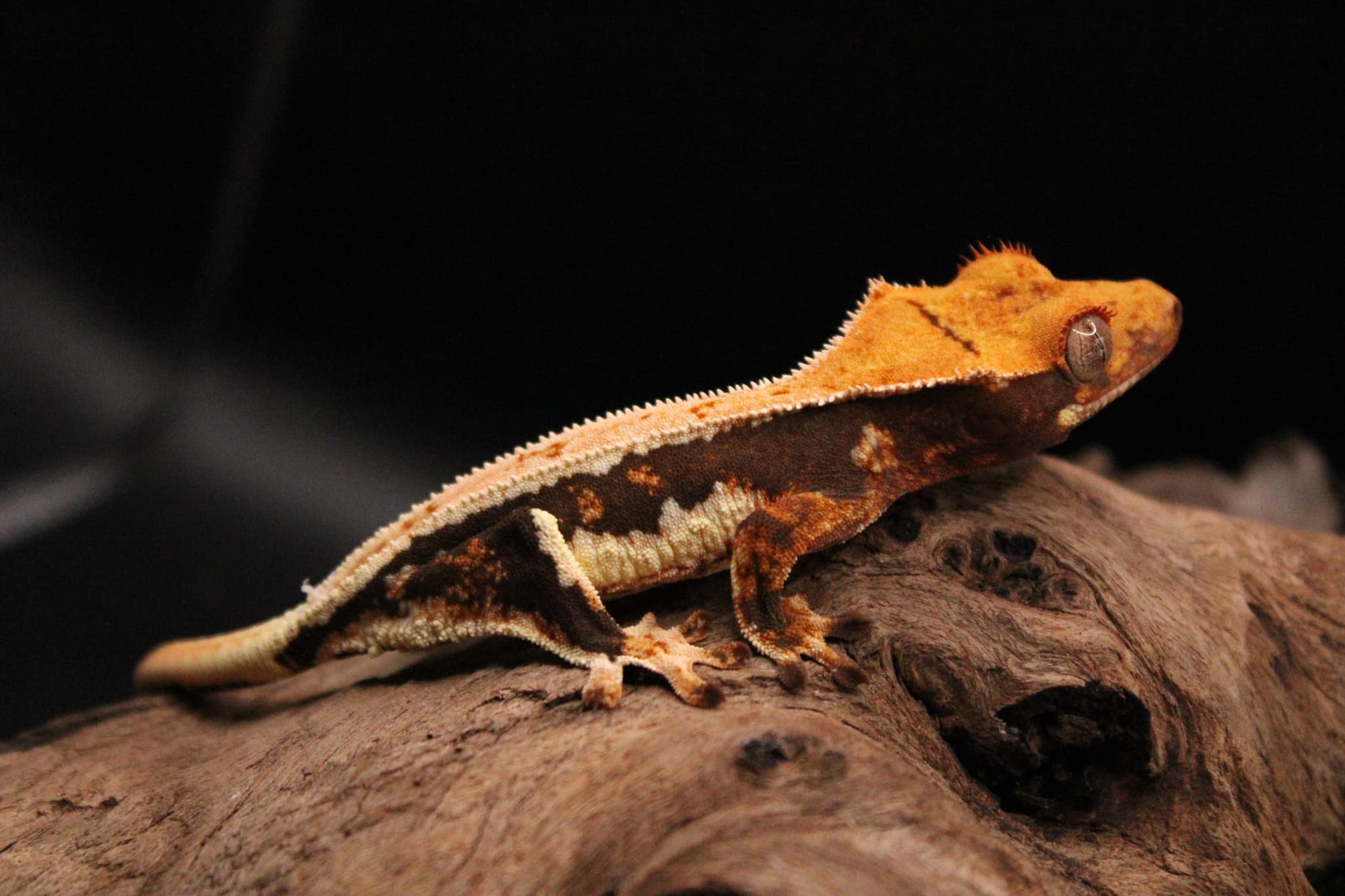
Open an animal profile and find Photos. Use Add Photo to upload clear views of the animal. In the gallery, mark the best image Primary. That primary photo is used on the animal's collection card and helps you identify the right record when selecting animals for a bulk action. The gallery keeps additional views for comparing markings or growth over time. Open an image for a larger view; remove a duplicate or unsuitable photo from the gallery after confirming you selected the right one. If an upload is refused, check the file type, size, and your plan's photo allowance.
Photo on an animal card


Use photos in context
The same animal may appear in a standard collection card, a selected card while you work in bulk mode, and its full profile. The card favors quick recognition with photo, ID, name, sex, status, and other brief details. The profile gallery is where you can examine multiple images. Review which image is primary after adding new photos, especially if you plan to share the public profile. Do not rely on a card thumbnail to evaluate a fine detail; open the full image.
Animal photo gallery
Add notes that remain useful
Use the animal's notes for observations that do not fit a structured feeding, weight, or shed entry. Include what you saw and when it happened so a future review has context. For an event with its own form, save the structured record as well so it appears in charts and history. Revisit notes when an animal changes status or moves between collections. Before sharing, preview the public profile and verify what a visitor can see. Keep private working details in private fields and confirm visibility rather than assuming every part of an internal record is published.
Notes on the animal record